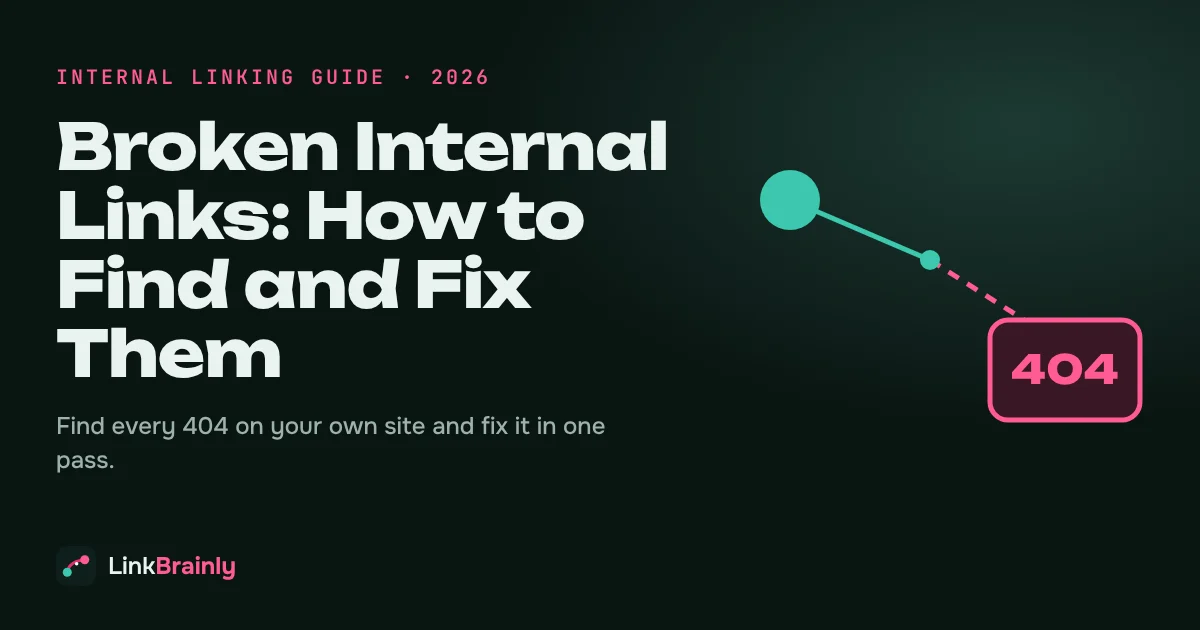
Broken internal links are links from one page of your website to another page on the same website that no longer works. The destination returns an error, usually a 404 "page not found", so visitors hit a dead end and search engines waste crawl time. You find broken links by crawling your site and checking the status code of every internal URL, and you fix each one by pointing the link at the correct live page or removing it.
This guide explains what causes broken internal link, why they hurt SEO and sales, four ways to find them, and how to fix them on WordPress, Shopify or any other website.
What Are Broken Internal Links?
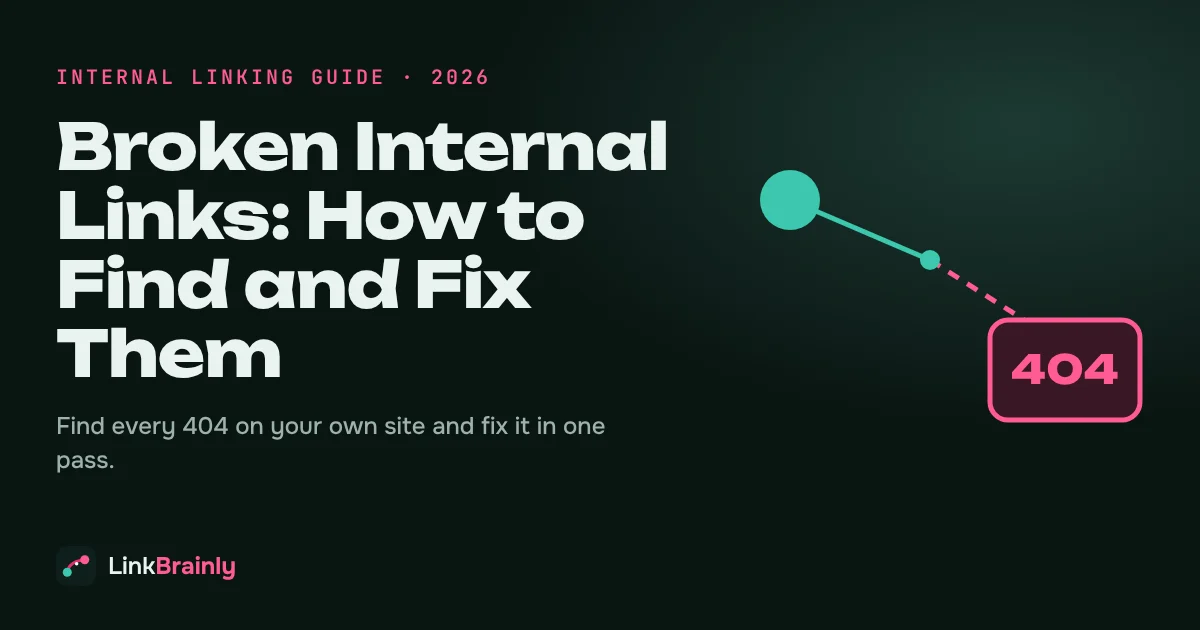
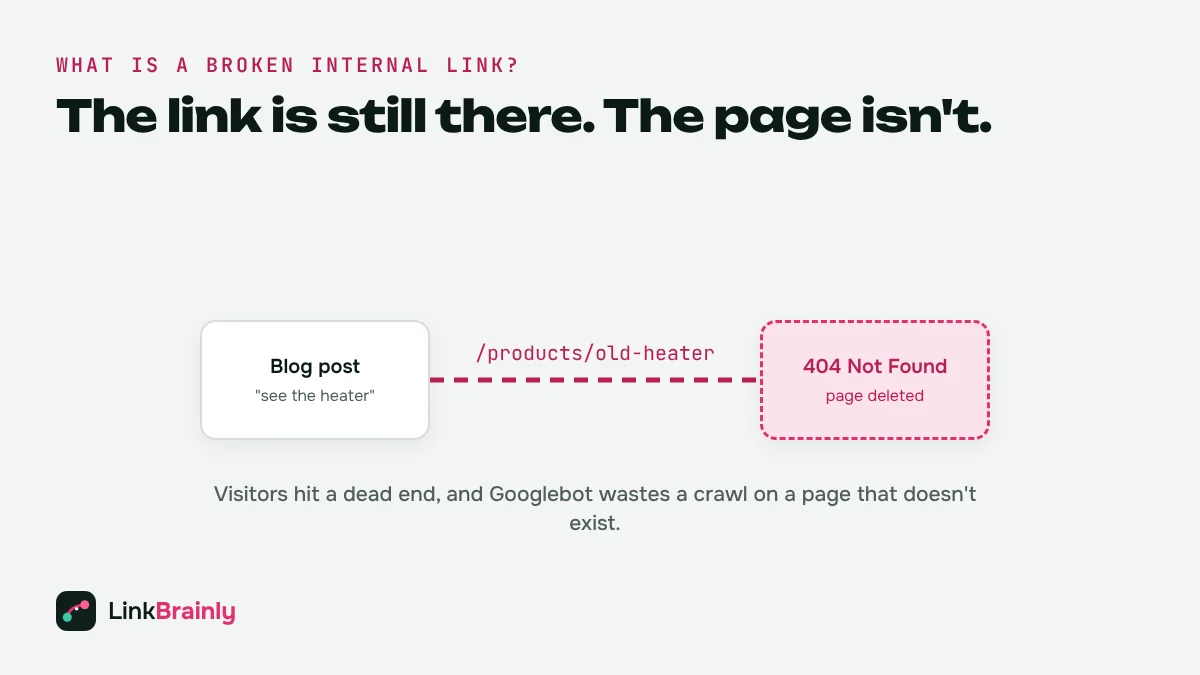
A broken internal link is an internal link whose destination page returns an error instead of loading. The link itself still sits in your menu, blog post or product description, but clicking it leads nowhere useful.
The most common error is 404 Not Found, which means the page doesn't exist at that address any more. Other errors that break a link are 410 Gone (the page was removed on purpose), 5xx server errors (the server failed) and links to pages that time out.
Broken internal link is different from broken external links. An external link points to another website, so you can't fix the destination. A broken internal link points to your own website, so you control both ends and can always fix it.
What Causes Broken Internal Links?
Most broken internal links appear when a page changes but the links pointing to it don't. The usual causes are:
- Changed URLs. A product, post or category slug is edited, and no redirect is added from the old address.
- Deleted pages. A page, product or blog post is removed while other pages still link to it.
- Site migrations and redesigns. A new URL structure (for example /blog/post to /articles/post) breaks every hard-coded link in old content.
- Typos in links. A missing letter or an extra slash in a link added by hand.
- Out-of-stock products removed. On online stores, products that are unpublished or deleted often stay linked from blog posts,collections,s and menus.
- Staging or old domains. Links copied from a staging site or an old domain point to addresses that no longer exist.
When I was fixing internal links by hand on a large online store, removed products and renamed collections caused most of the broken links, and nobody noticed until customers complained.
Why Do Broken Internal Links Hurt SEO?
Broken internal link hurt SEO and conversions in four ways.They Waste Crawl Budget
Googlebot follows your internal links to discover and re-crawl pages. Every link that ends in a 404 is a request spent on a page that doesn't exist, instead of a page you want indexed. On a small site the cost is small; on a store with thousands of products it adds up.
They Stop Link Value from Flowing
Internal links pass authority from one page to another. A link to a 404 page passes that value to nothing, so the page you meant to support loses a signal it should have had.
They Leave Pages Under-Linked or Orphaned
If the broken link was the only path to an important page, that page can become one of your orphan pages, with no working internal links pointing to it at all.
They Lose Customers
A shopper who clicks "see the full range" and lands on a 404 page often leaves. Internal links make a site look unmaintained and cut sales on the exact pages that were meant to sell.
How Do You Find Broken Internal Links?
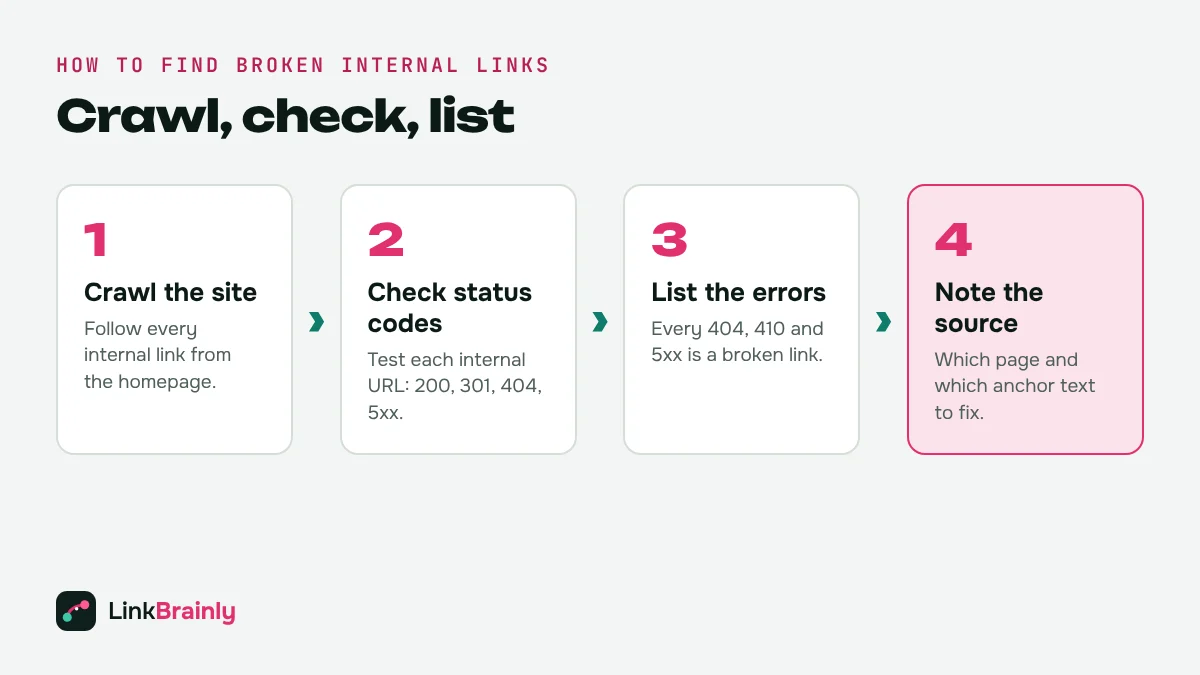
To find broken internal link, a tool must follow every internal link on your site and record the HTTP status code of each destination. Any internal URL that returns 404, 410 or a 5xx error is a broken link. Here are four ways to do it.
Method 1: Use an AI Internal Link Checker
The free LinkBrainly internal link checker crawls your latest 200 pages and tests every internal URL it finds. For each broken internal link, it shows the page the link sits on, the anchor text, the broken URL and the error code, plus links that point at redirects. You can download the full list as an Excel or CSV file.
Method 2: Check Google Search Console
In Google Search Console, open Indexing → Pages and look at the "Not found (404)" reason. It lists URLs Google tried to crawl that returned 404. Search Console doesn't always show which page holds the broken link, so use it to find the dead URLs and then search your site for links pointing to them.
Method 3: Use a Desktop Crawler
Desktop crawlers such as Screaming Frog crawl your site from your own computer and report every response code. Filter the results by "Client Error (4xx)", then open the "Inlinks" tab to see which pages link to each broken URL. The free version of Screaming Frog crawls up to 500 URLs.
Method 4: Check Your Server Logs and Analytics
Your server logs and analytics show 404 hits from real visitors. In Google Analytics 4, a report filtered on your 404 page title shows which dead URLs people actually reach. This method finds the broken links that cost you the most traffic first.
How Do You Fix Broken Internal Links?
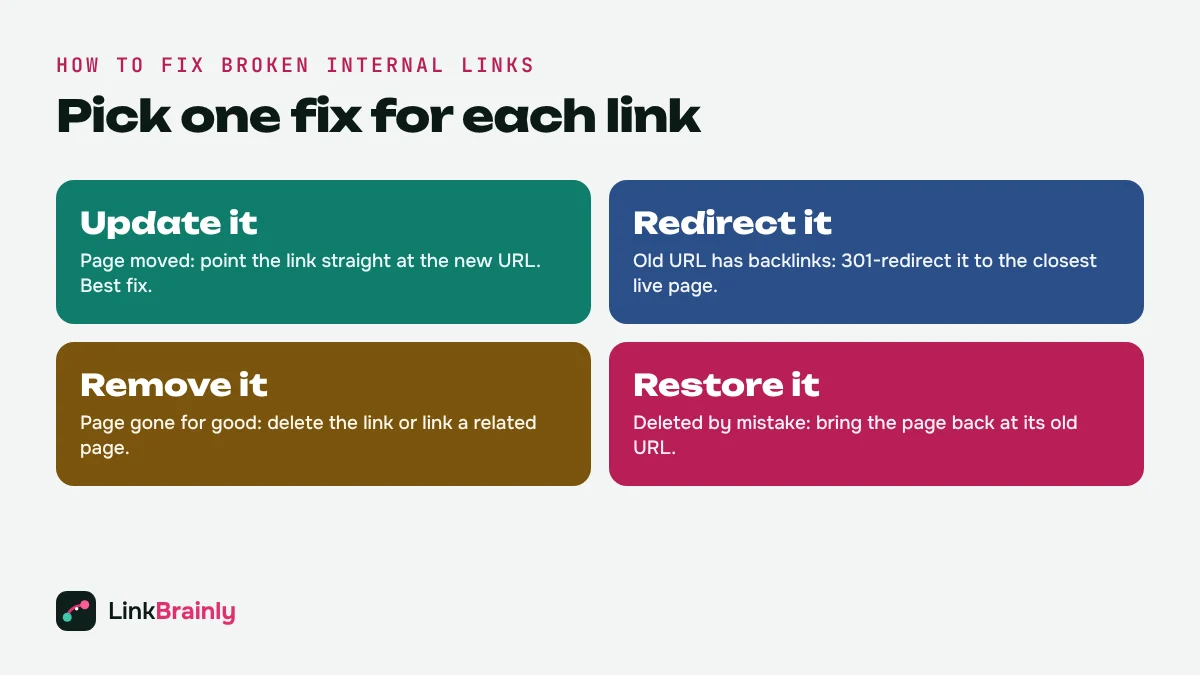
You fix broken links by choosing the right action for each broken URL. Work through your list one link at a time.
1. Update the Link to the Correct Page
If the page still exists at a new address, edit the link so it points straight to the new URL. This is the best fix, because the visitor and Googlebot reach the right page in one step with no redirect in between.
2. Add a 301 Redirect From the Old URL
If the old URL is linked from many pages or has backlinks from other websites, add a 301 redirect from the old URL to the closest live replacement. Then update your most important internal links anyway, so they skip the redirect.
3. Remove or Replace the Link
If the page is gone and nothing similar exists, remove the link, or link to a related page that still helps the reader, such as the parent category. Don't redirect everything to the homepage; Google treats mass redirects to the homepage as soft 404s.
4. Restore the Page
If a page was deleted by mistake, or it still gets traffic and backlinks, restoring it at its original URL fixes every broken link to it at once.
How to Fix Broken Internal Links on WordPress and Shopify
On WordPress, open each source page in the editor, find the anchor text, and update or remove the link. The free LinkBrainly WordPress plugin lists every broken internal link with its source page and lets you replace or remove it in one click, and it works alongside Yoast SEO and Rank Math. For changed URLs, a redirect plugin or Rank Math's redirection module handles 301 redirects.
On Shopify, broken links often sit in product descriptions, blog posts and menus. Shopify adds a URL redirect automatically when you change a product or page handle and tick "Create a URL redirect", so check that box every time. The LinkBrainly Shopify app shows where each broken link lives: in a description you can replace or remove it in one click, and in a menu it takes you to the menu editor. Every change can be undone.
Broken Internal Links Vs Internal Redirects
An internal link that points to a redirect isn't broken, because the visitor still reaches a live page. It is still worth fixing. Each redirect adds an extra request and a short delay, and a chain of several redirects can stop Googlebot before it reaches the final page.
Treat internal redirects as a second, lower-priority list: fix broken links first, then update links that point at a redirect so they go straight to the final URL. A good audit shows both lists side by side, so one pass through your content cleans up everything.
How Do You Prevent Broken Internal Links?
- Redirect before you rename. Add a 301 redirect every time you change a URL or slug.
- Check before you delete. Before removing a page or product, find which pages link to it and update them.
- Link to the live domain only. Never paste links from a staging site or an old domain.
- Audit monthly. Run an internal link audit every month and after every migration, redesign or large product update.
Broken Internal Link Checklist
- Crawl your site and list every internal URL that returns 404, 410 or 5xx.
- For each one, note the source page and the anchor text.
- Update the link if the page moved; add a 301 redirect if the old URL has backlinks.
- Remove or replace links to pages that are gone for good.
- Update internal links that point to redirects, so they go straight to the final URL.
- Re-crawl to confirm zero broken links.
Want to know how many broken internal links your site has right now? Run the free LinkBrainly audit and get the full list in a few minutes. For more internal linking tips, follow LinkBrainly on LinkedIn.
Our YouTube for Video - https://www.youtube.com/watch?v=eXu00iP7l_8
Also Read
- Orphan Pages: How to Find and Fix Them
- What Is an Internal Link?
- Best Internal Link Checker Tools
- Site Audit Tool Guide
Updated October 2026 · By Vipul Chaudhary, founder of LinkBrainly