Shopify internal linking means adding links between the pages of your own Shopify store: from blog posts to products, from collections to related collections, and from product descriptions to buying guides. Good internal linking helps Google find every product, shows which pages matter most, and guides shoppers from reading to buying. Your theme adds some internal links automatically through menus and collection grids, but the links inside your content are the ones most stores are missing.
This Shopify internal linking guide explains how a Shopify store is linked by default, which pages should link to which, how to add internal links in the Shopify admin step by step, and how to audit your store for missing and broken links.
What Is Shopify Internal Linking?
Shopify internal linking is the practice of connecting pages within one Shopify store with ordinary HTML links. An internal link on a Shopify store points from one of its URLs, such as a blog article, to another URL on the same domain, such as /products/roasted-almonds-500g or /collections/dry-fruits.
A Shopify store has four main page types, and each has its own URL pattern:
- Products:
/products/product-handle - Collections:
/collections/collection-handle - Pages:
/pages/page-handle, such as About or Shipping - Blog articles:
/blogs/blog-handle/article-handle
Internal linking is about how these four page types point to each other. If you are new to the idea of links between your own pages, start with what an internal link is.
Why Does Internal Linking Matter for Shopify Stores?
Internal linking matters for Shopify stores because links are how Google discovers pages, decides how important each page is, and learns what each page is about.
- Discovery: Google finds pages mainly by following links. A product that no other page links to is an orphan page, and Google may crawl it rarely or never, even if it is in your sitemap.
- Importance: pages that receive many internal links look more important. Your best-selling collection should receive more links than a seasonal product from three years ago.
- Relevance: the words you link, called anchor text, tell Google what the destination page is about. "Roasted almonds" says far more than "Shop now".
- Revenue: a shopper reading a gifting guide is one click from a product only if the guide links to it. Blog traffic without product links rarely turns into sales.
I started LinkBrainly after fixing internal links by hand on a large Shopify store. The pattern was always the same: menus and collection grids were fine, but blog posts and product descriptions almost never linked to anything. That gap is where Shopify internal linking wins the most.
How Is a Shopify Store Linked by Default?
A Shopify theme links your store in four places automatically, and none of them depends on what you write:
- Navigation menus: the header and footer menus you set in Online Store → Navigation, shown on every page.
- Collection grids: every collection page links to the products inside it.
- Product recommendations: most themes show related or complementary products on product pages.
- Blog listings: the blog page links to its articles, and many themes show the latest posts on the homepage.
These theme links keep products reachable, but they are generic. The same menu sits on every page, so it carries little topical signal. The contextual links inside product descriptions, collection descriptions and blog articles are the part of Shopify internal linking that you control, and on most stores they are almost empty.
Which Pages Should Link to Which on Shopify?
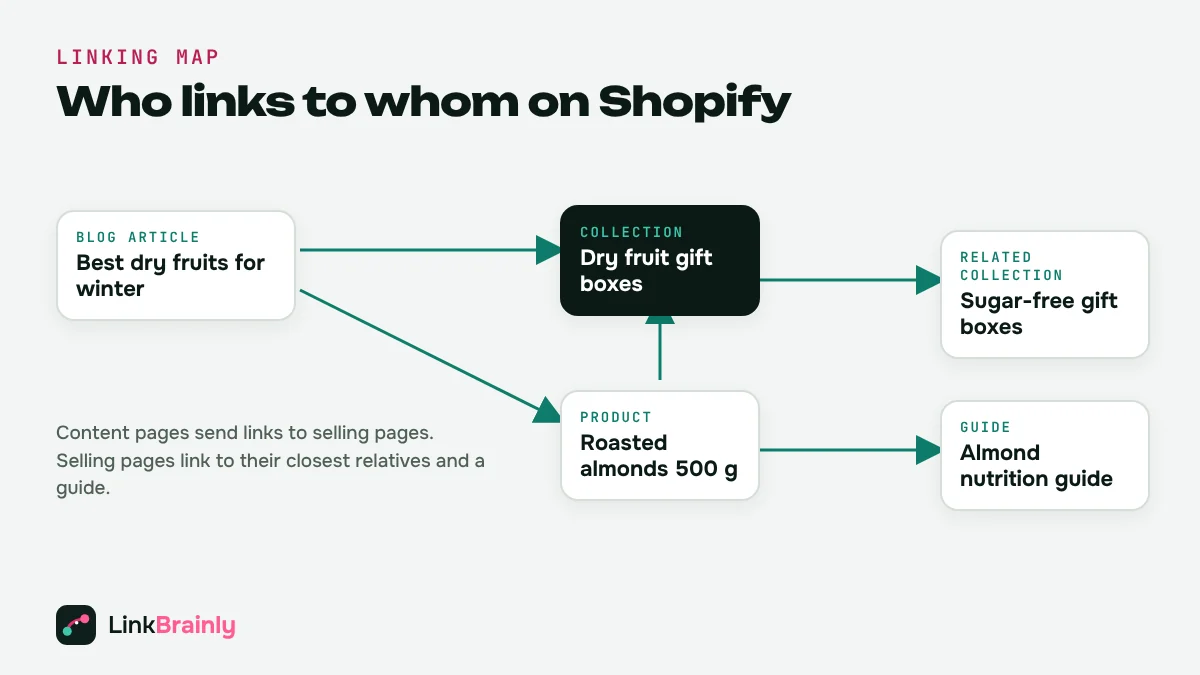
A simple rule works for most stores: content pages send links to selling pages, and selling pages link to their closest relatives. Use this table as your Shopify internal linking map.
| From | Link to | Example anchor |
|---|---|---|
| Blog article | The products and collections it mentions | "our roasted almonds", "dry fruit gift boxes" |
| Collection | Related collections and a buying guide | "sugar-free gift boxes", "how to choose a gift box" |
| Product | Its main collection, a guide and 1 to 3 related products | "all almonds", "almond nutrition guide" |
| Homepage | Top collections and best sellers | "best-selling gift boxes" |
| About, FAQ and policy pages | Key collections where they fit naturally | "shop corporate gifting" |
Blog articles are the most important source of links. A guide that ranks on Google can pass shoppers and authority to the products it mentions, but only if it links to them.
How Do You Add Internal Links in Shopify?
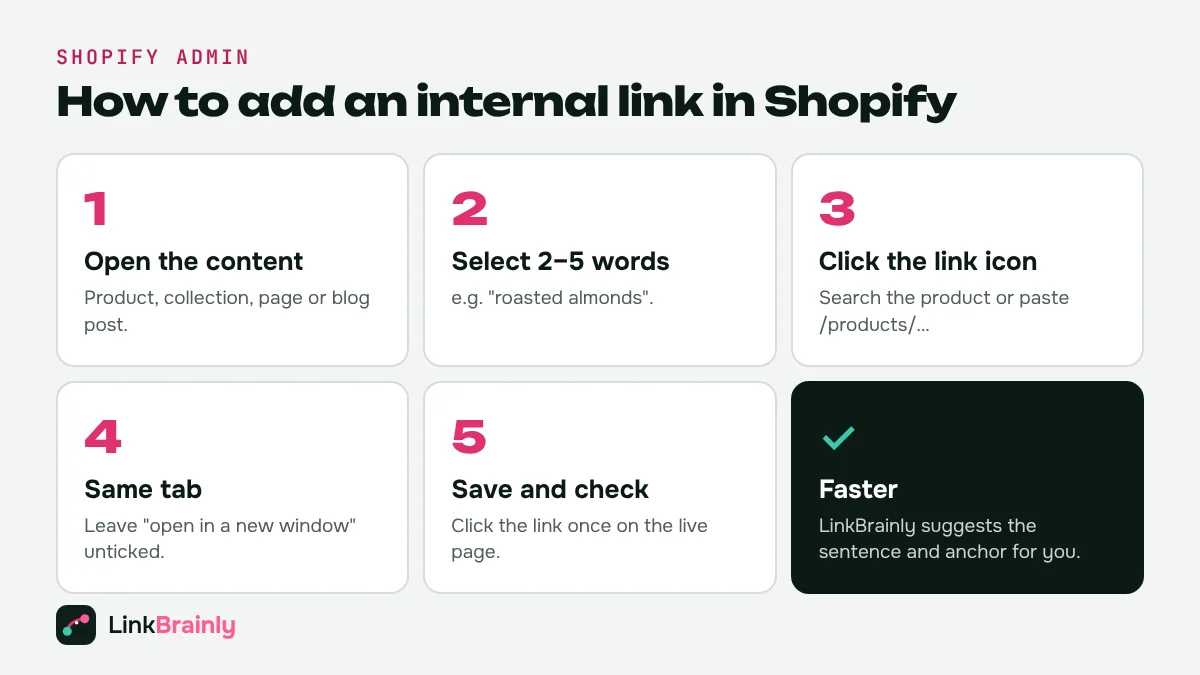
You add internal links in Shopify with the link button in the rich text editor, the same way in products, collections, pages and blog posts.
- Open the content. In the Shopify admin, open the product, collection, page or blog post you want to link from.
- Select the words. In the description or content box, highlight the 2 to 5 words that describe the destination page, for example "roasted almonds".
- Click the link icon. Search for the product, collection or page in the link box, or paste its URL, such as
/collections/dry-fruits. - Keep it on the same tab. Internal links should open in the same browser tab, so leave "open in a new window" unticked.
- Save and check. Save, then open the live page and click the link once to confirm it works.
To add a page to the header or footer instead, go to Online Store → Navigation, open the menu and add a menu item. Use menus for your main collections only, and do the rest of your Shopify internal linking inside the content.
8 Shopify Internal Linking Best Practices
1. Link Every Blog Post to at Least One Product or Collection
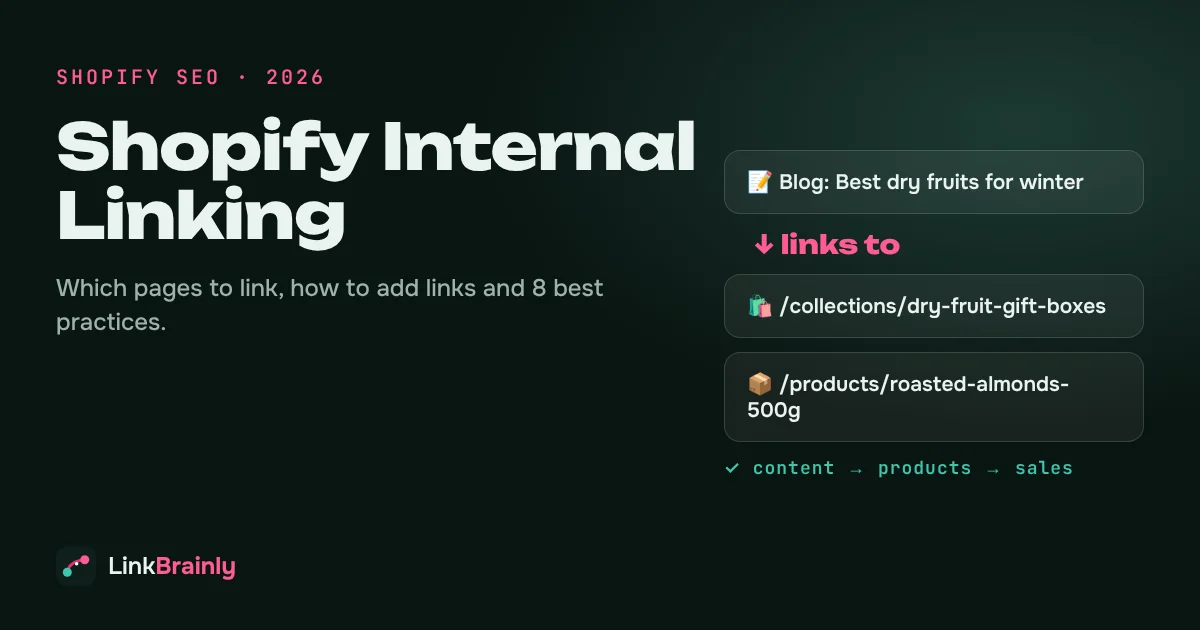
Every Shopify blog article should link to the products or collections it talks about. A recipe that uses almonds should link to your almonds. This single habit fixes most internal linking gaps.
2. Use Descriptive Anchor Text
Link words that describe the destination, such as "sugar-free dry fruit gift box", instead of "click here" or "shop now". Keep anchors to 2 to 5 words and vary them naturally. Our guide to anchor text for internal links covers the details.
3. Link to the Clean /products/ URL
Some themes show products at URLs like /collections/almonds/products/roasted-almonds. Shopify adds a canonical tag that points to /products/roasted-almonds, so link to the /products/ version in your content. It is the version Google indexes.
4. Give Every Product at Least One Contextual Link
A product that appears only in a collection grid has no contextual links. Mention it by name in a guide, a related product description or a collection description, and link it. On a large catalogue, this is the simplest Shopify internal linking fix.
5. Write Collection Descriptions That Link
Collection descriptions are often left empty. Two or three sentences that link to related collections and a buying guide help shoppers and give Google context.
6. Keep Links Few and Useful
Good Shopify internal linking is selective. There is no fixed number of internal links per page. On Shopify, 2 to 5 contextual links in a product description or 3 to 8 in a long blog post usually reads naturally. Link where it helps the reader, not to hit a target.
7. Redirect When You Change a Handle
When you edit a product or collection URL handle in the search engine listing section, keep "Create a URL redirect" ticked. Shopify then redirects the old URL, so existing internal links keep working.
8. Fix Links When You Delete or Hide Products
Deleting a product, or setting it to draft, turns every link to it into a dead end for shoppers. Update those links to a similar product or the collection, or add a redirect in Online Store → Navigation → View URL redirects.
What Shopify Internal Linking Mistakes Should You Avoid?
Shopify linking mistakes are easy to miss, because the store still looks fine to visitors. Watch for these five:
- Orphan products: products that no page links to. Shopify still lists them in the sitemap, but Google treats them as unimportant. Learn how to find and fix orphan pages.
- Links to deleted or draft products: these return a 404 page. They often hide inside old blog posts and become broken internal links.
- "Shop now" everywhere: dozens of identical generic anchors tell Google nothing about the pages they point to.
- Relying only on menus: a store linked only through its header and footer has no topical links at all.
- Linking a whole paragraph: a long linked sentence is hard to read and weakens the anchor.
How Do You Audit Internal Links on a Shopify Store?
You audit internal links on a Shopify store by crawling every page, listing every link with its anchor text and destination, and comparing that list with your products, collections and articles. The audit should answer four questions:
- Which products and collections have no internal links pointing to them?
- Which links point to deleted, draft or redirected URLs?
- Which blog posts link to no products at all?
- Which anchors are generic, such as "click here" or "shop now"?
Run a Shopify internal linking audit once a month, and again after big catalogue changes. You can do this by hand in a spreadsheet on a small store. On a store with hundreds of products, a tool is faster. The LinkBrainly AI internal link checker audits the latest 200 pages of any store for free and shows orphan pages, broken links and ready-to-use link suggestions with the sentence and anchor text for each. The LinkBrainly Shopify app runs the same audit inside your Shopify admin and adds the links you approve to your product, collection, page and blog content, with one-click undo.
Shopify Internal Linking Checklist
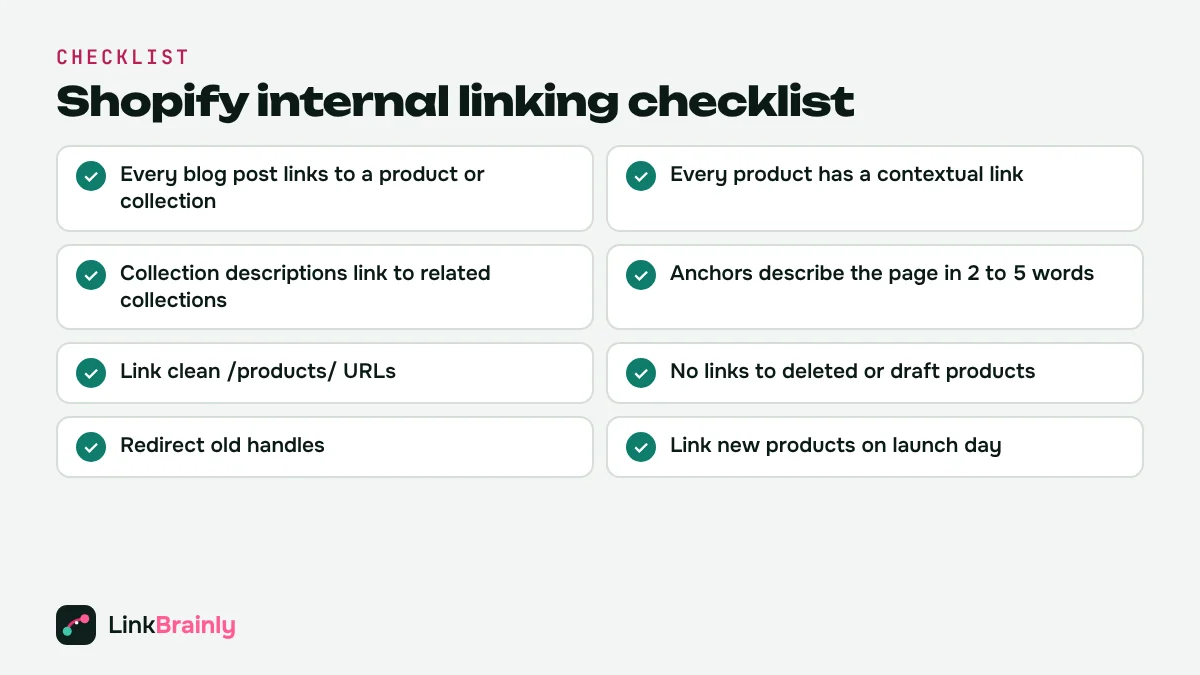
Use this internal linking checklist every time you add products, collections or blog posts:
- Every blog post links to at least one product or collection
- Every product has at least one contextual link from another page
- Collection descriptions link to related collections and a guide
- Anchors describe the destination in 2 to 5 words
- Links point to clean
/products/URLs - No links to deleted, draft or redirected products
- Old handles redirect to new ones
- New products and posts get links on the day you publish them
Want to see your store's gaps in two minutes? Run the free LinkBrainly audit, and follow LinkBrainly on LinkedIn for more Shopify SEO tips.
Also Read
- Anchor Text for Internal Links: Types, Examples and Best Practices
- Internal Linking Strategy: A Step-by-Step Guide (2026)
- Orphan Pages: How to Find and Fix Them (2026 Guide)
- Broken Internal Links: How to Find and Fix Them (2026)
Updated November 2026 · By Vipul Chaudhary, founder of LinkBrainly
Frequently asked questions
What is Shopify internal linking?
Shopify internal linking is adding links between pages of the same Shopify store, such as from blog articles to products and collections. It helps Google find every product, shows which pages matter most and guides shoppers towards buying.
How do I add an internal link in Shopify?
Open the product, collection, page or blog post in the Shopify admin, select 2 to 5 descriptive words, click the link icon in the editor, then search for the page or paste its URL and save. Check the link once on the live page.
Does Shopify add internal links automatically?
Partly. Shopify themes link pages through navigation menus, collection grids, product recommendations and blog listings. They do not add links inside your product descriptions, collection descriptions or blog articles, which is where most stores are missing links.
How many internal links should a Shopify product page have?
There is no fixed number. 2 to 5 contextual links in a product description usually reads naturally: the main collection, a guide and one to three related products.
Should I link to /products/ or /collections/…/products/ URLs?
Link to the /products/ URL. Shopify's canonical tag points to the /products/ version, so that is the URL Google indexes.
How do I find products with no internal links in Shopify?
Crawl your store and compare the pages that receive links with your full product list. LinkBrainly's free audit does this for your latest 200 pages and lists orphan products with suggested links; the LinkBrainly Shopify app does it inside your Shopify admin.